Using ospp.vbs to Check and Manage Office Licenses
A command-line tool called ospp.vbs can be used to check and manage Microsoft Office licenses on Windows systems, offering a detailed view of installed products and their activation status.

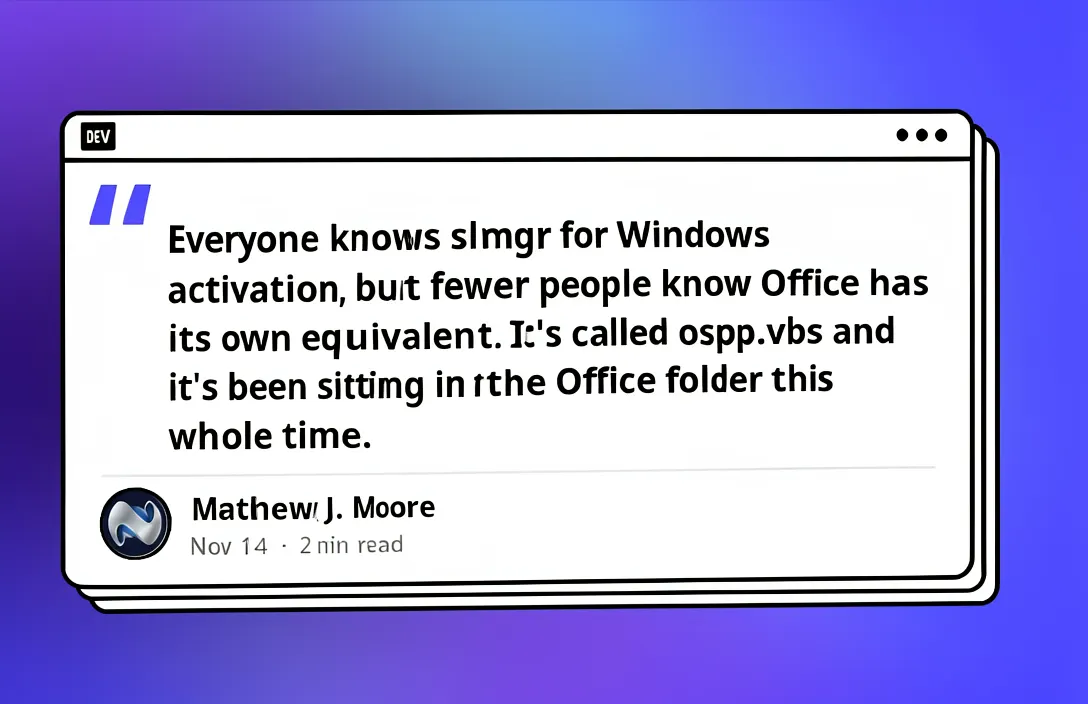

The ospp.vbs script, located in the Office installation directory, allows users to check the status of Office licenses from the command line. For a typical 64-bit Office installation, the script can be found in the 'C:\Program Files\Microsoft Office\Office16' folder, while 32-bit Office on 64-bit Windows is located in 'C:\Program Files (x86)\Microsoft Office\Office16'. Running the script from an admin prompt with cscript enables detailed output in the console, making it easier to diagnose licensing issues (Dev.to, 1). [1]
The /dstatus command within ospp.vbs provides a comprehensive overview of all installed Office licenses, including license status, product names, and the last five characters of each installed key. This is particularly useful for identifying multiple license blocks, which are common on laptops with Microsoft 365 trials and additional Office installations (Dev.to, 1). [1]
Users can input and activate a new license key using the /inpkey and /act commands, similar to the slmgr tool used for Windows activation. If activation fails, an error code is returned, which can be used for further troubleshooting. Additionally, the /unpkey command allows for the removal of outdated or expired keys, ensuring that only the desired license is activated (Dev.to, 1). [1]
The ospp.vbs script, located in the Office installation directory, allows users to check the status of Office licenses from the command line. The /dstatus command within ospp.vbs provides a comprehensive overview of all installed Office licenses, including license status, product names, and the last five characters of each installed key. This information is useful for identifying issues such as multiple license blocks, which are common on laptops with Microsoft 365 trials and additional Office installations (Dev.to, 1). [1]
Advertisement
Users can input and activate a new license key using the /inpkey and /act commands, similar to the slmgr tool used for Windows activation. This process involves running the commands from an admin prompt and through cscript to ensure the output is displayed in the console. If activation fails, an error code is provided, which can be used for troubleshooting (Dev.to, 1). [1]
The /unpkey command allows users to remove an old or leftover license key, which is useful if an expired trial or incorrect key is listed in the /dstatus output. Removing such keys before activating a new one ensures that Office does not continue to check the wrong license. This process is particularly useful for volume and standalone retail installs, as Microsoft 365 subscriptions are managed through account sign-in rather than this script (Dev.to, 1). [1]
The ospp.vbs script, located in the Office installation directory, allows users to check the status of Office licenses from the command line. The /dstatus command within ospp.vbs provides a comprehensive overview of all installed Office licenses, including license status, product names, and the last five characters of each installed key. This functionality is similar to the slmgr tool used for Windows activation. According to Dev.to, the /dstatus command is particularly useful for identifying multiple license blocks or determining whether a license is retail or volume-based (source ID: 1). [1]
Users can input and activate a new license key using the /inpkey and /act commands, similar to the slmgr tool used for Windows activation. This process involves entering the license key and then activating it through the command line. If activation fails, the tool provides an error code, which can be useful for troubleshooting. Dev.to notes that this method is especially helpful for volume and standalone retail installs, as Microsoft 365 subscriptions are typically managed through account sign-ins rather than this tool (source ID: 1). [1]
Advertisement
The /unpkey command allows users to remove an old or leftover license key, which is useful if an expired trial or incorrect key is listed in the /dstatus output. This command is recommended to be used before activating a new key to avoid conflicts. Dev.to highlights that this is a common step when dealing with laptops that have multiple Office licenses installed, which can lead to issues like the "Unlicensed Product" error (source ID: 1). [1]
Sources
Prepared with AI assistance from the cited sources.
The Cali Reporter newsletter
The stories worth your time.
California, the country, and what comes next. Join our free newsletter for reporting that keeps you informed.
More in Technology
- Modern Web Guidance 1.0 and Browser Compatibility
Modern Web Guidance 1.0, announced by Chrome for Developers on November 10, introduces browser compatibility data to assist coding agents in building web features. The initiative emphasizes the importance of fallback…
- Apache mod_http2 Vulnerability Detection with Nmap
A new Nmap scripting module has been developed to detect the Apache mod_http2 vulnerability (CVE-2026-119618), addressing the challenges of identifying affected systems accurately.
- Securing Remote Vendor Access in Industrial Networks
Best practices for managing remote vendor access in operational technology (OT) networks emphasize controlled access points, multifactor authentication, and time-bound sessions to reduce cybersecurity risks.