How to Check and Update Your iPhone's iOS Version
Apple provides straightforward methods for users to check their iPhone's iOS version and update to the latest software, ensuring continued performance and security.


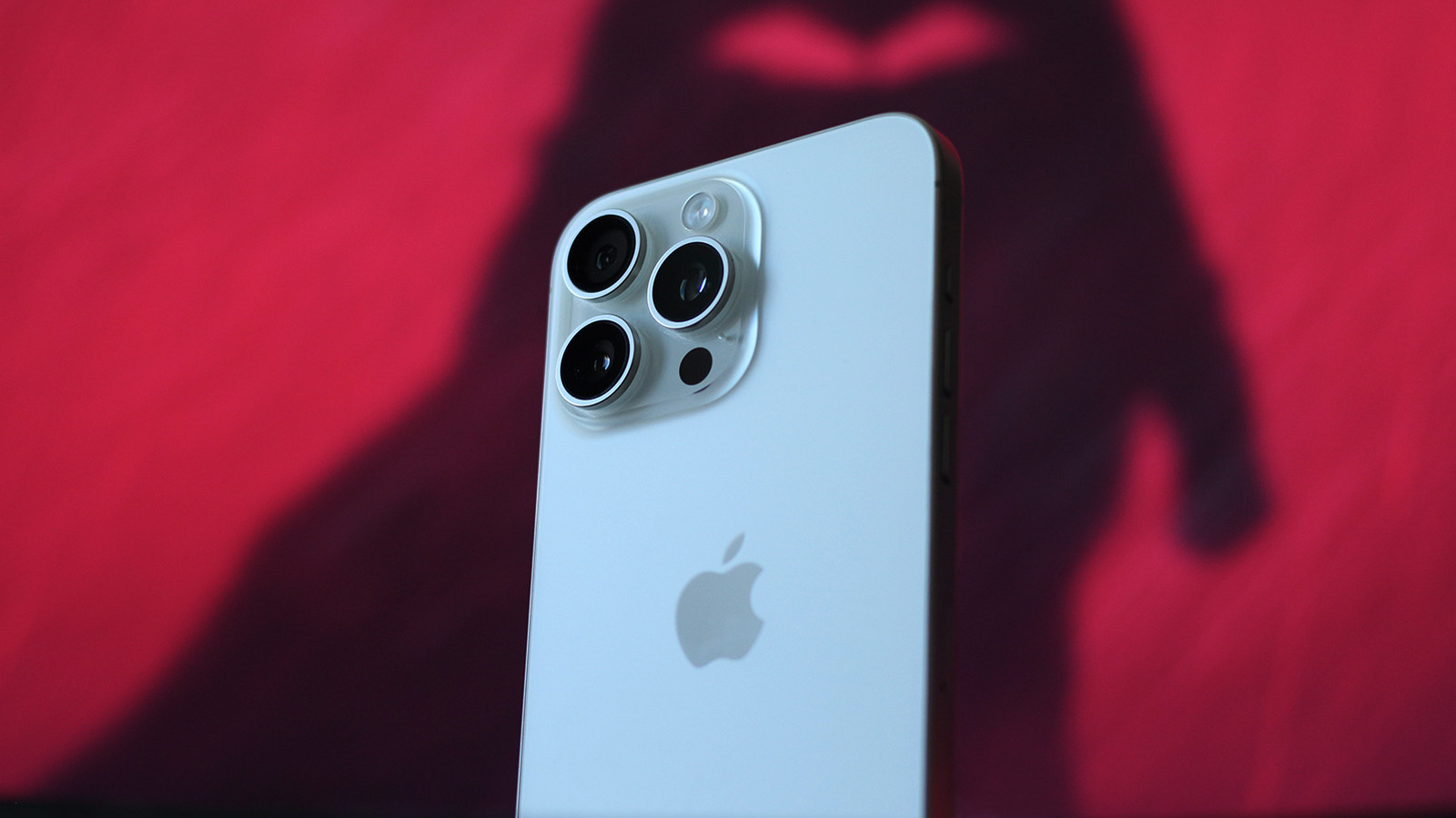
To check the iOS version on an iPhone, users can navigate to the Settings app, then General > About > iOS Version. This method allows users to see the current software version installed on their device. According to Engadget, this information is easily accessible and provides a quick way for users to verify their iOS version without needing to connect to a computer (source ID: 1). [1]
Users can also check for iOS updates manually by going to Settings > General > Software Update. This section not only shows the current software version but also provides a Download and Install button if an update is available. For major iOS releases, such as iOS 27, updates may appear in a separate Also Available section at the bottom of the screen (source ID: 1). [1]
Apple recommends configuring automatic updates for convenience. By enabling the Automatically Install toggle in the Software Update settings, the iPhone will handle updates on its own when connected to Wi-Fi and has sufficient battery. However, manual updates require at least 20 percent battery to ensure a smooth installation process (source ID: 1). [1]
For users who prefer updating via a computer, connecting the iPhone to a Mac or Windows PC allows for manual updates through Finder, iTunes, or the Apple Devices app. Apple also emphasizes the importance of backing up the iPhone before installing updates to prevent data loss (source ID: 1). [1]
Advertisement
The iPhone 11, released in 2019, is noted for its ability to run the latest version of iOS more than seven years after its initial launch, highlighting Apple’s long-term software support strategy. This capability ensures that even older devices remain functional with the most recent features and security updates. The process of checking the iOS version involves navigating to Settings > General > About > iOS Version, a straightforward method that allows users to stay informed about their device's current software status. Additionally, users can manually check for updates by accessing Settings > General > Software Update, where the current software version is displayed, and updates can be initiated with a simple tap on the Download and Install button. This feature is particularly useful for users who prefer to control when they install updates rather than relying on automatic installations. The option to enable Automatic Updates is also available, allowing the iPhone to download and install updates on its own when connected to Wi-Fi and with sufficient battery life. This ensures that users are always running the most up-to-date software without the need for manual intervention. For users who prefer to update their iPhone via a computer, the process involves connecting the device to a Mac or Windows PC and using Finder or iTunes, respectively. This method is especially beneficial for users with unreliable Wi-Fi connections or larger update files that may require a more stable internet connection. Before installing any software updates, Apple recommends backing up the iPhone to prevent data loss, which can be done through iCloud or by connecting to a computer and using Finder or iTunes. This precaution ensures that users can restore their device to a previous state if any issues arise during the update process. The importance of keeping the iPhone updated is further emphasized by Apple’s commitment to improving performance and stability with each major iOS release. For instance, iOS 27 is noted for its improved performance, particularly on older iPhone models, with a new optimized CPU scheduler that can launch apps up to 30 percent faster. These enhancements demonstrate Apple’s focus on ensuring that even older devices can benefit from the latest software improvements. The introduction of Siri AI in iOS 27 also marks a significant step forward in Apple’s AI capabilities, although it is still in the early stages of development and not yet as advanced as initially promised. Overall, the process of checking and updating the iOS version is designed to be user-friendly, ensuring that all iPhone users can easily maintain their devices with the latest software updates. The ability to update via both mobile and computer connections provides flexibility, while the emphasis on backup and security ensures that users can safely keep their devices up to date without risking data loss. This comprehensive approach to software updates underscores Apple’s dedication to providing a reliable and secure user experience across all its devices. [1]
Sources
Prepared with AI assistance from the cited sources.
The Cali Reporter newsletter
The stories worth your time.
California, the country, and what comes next. Join our free newsletter for reporting that keeps you informed.
More in Technology
- Modern Web Guidance 1.0 and Browser Compatibility
Modern Web Guidance 1.0, announced by Chrome for Developers on November 10, introduces browser compatibility data to assist coding agents in building web features. The initiative emphasizes the importance of fallback…
- Apache mod_http2 Vulnerability Detection with Nmap
A new Nmap scripting module has been developed to detect the Apache mod_http2 vulnerability (CVE-2026-119618), addressing the challenges of identifying affected systems accurately.
- Securing Remote Vendor Access in Industrial Networks
Best practices for managing remote vendor access in operational technology (OT) networks emphasize controlled access points, multifactor authentication, and time-bound sessions to reduce cybersecurity risks.