Troubleshooting Non-Compliant Devices in Intune
When a device is flagged as non-compliant in Microsoft Intune, users often face access issues with critical applications like Outlook and Teams. A detailed checklist of compliance requirements must be reviewed before…

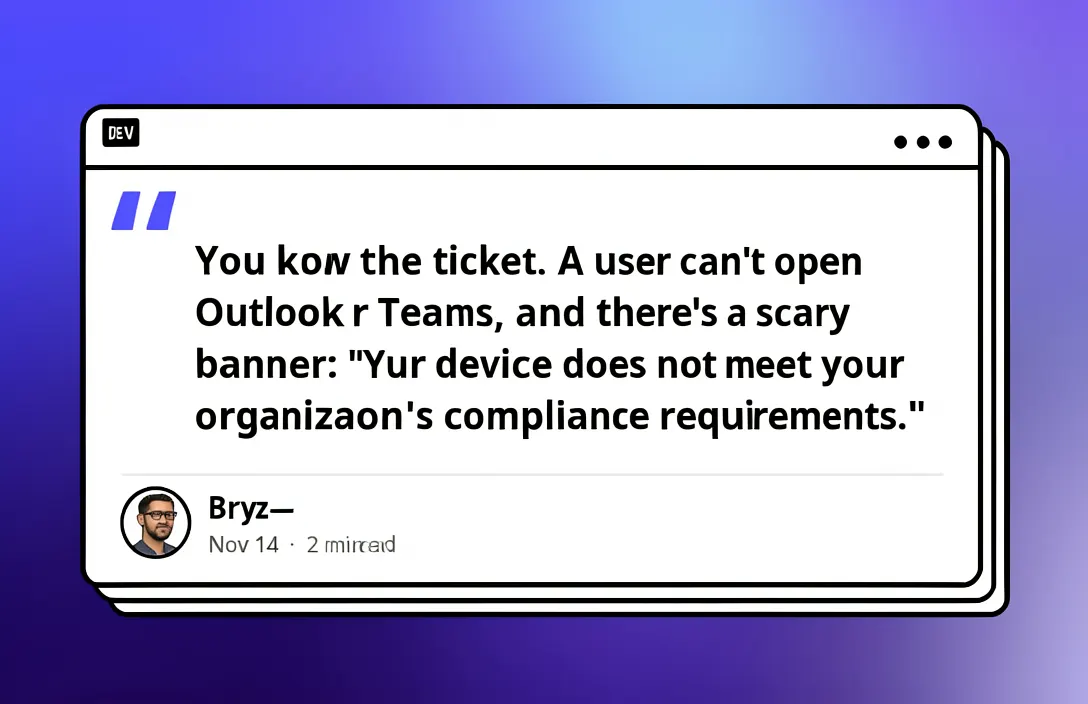

A user encountering a compliance issue may see a banner stating, "Your device does not meet your organization's compliance requirements." Rather than resetting the device, administrators should first force a check-in to ensure the device is reporting its status accurately (Dev.to, 1). This can be done through the Company Portal or Windows Settings by initiating a sync process. If the device has not checked in recently, this step is crucial to updating its compliance status (Dev.to, 1). [1]
For administrators with access to the Intune admin center, identifying the exact failed setting is the next step. By reviewing device compliance policies, administrators can pinpoint which specific setting failed (Dev.to, 1). This targeted approach helps avoid unnecessary troubleshooting and ensures the correct issue is addressed. Alternatively, PowerShell scripts using the Microsoft Graph SDK can be used to retrieve compliance details for specific devices, providing a detailed overview of their status (Dev.to, 1). [1]
Common compliance failures often relate to pending updates, missing BitLocker encryption, outdated operating systems, or the absence of a required password or PIN. Addressing these issues typically involves installing updates, enabling BitLocker, updating the OS, or setting a password (Dev.to, 1). After making these corrections, the device should be resynchronized with Intune to confirm that compliance has been restored (Dev.to, 1). [1]
The process of troubleshooting non-compliant devices in Microsoft Intune begins with ensuring the device checks in with the service. This can be initiated through the Company Portal by navigating to Devices, selecting the specific device, and using the 'Check access' option. Alternatively, within Windows Settings, users can go to Accounts > Access work or school > (work account) > Info > Sync to prompt the device to check in. It is important to allow a few minutes for the status to update, as changes may not reflect instantly. This step is critical to ensure that the device's current compliance status is accurately reflected in the Intune admin center. [1]
Advertisement
Once the device has checked in, administrators can access detailed compliance information through the Intune admin center. By navigating to Devices > All devices > (device) > Device compliance, each policy setting can be reviewed to determine which specific item failed. This granular view allows for targeted troubleshooting rather than broad assumptions. For those preferring PowerShell, the Microsoft Graph PowerShell SDK provides commands such as 'Connect-MgGraph' and 'Get-MgDeviceManagementManagedDevice' to retrieve device compliance status and last sync date. A stale last sync date indicates that the device may not be communicating properly with Intune, which can be a clue for further investigation. [1]
Common reasons for compliance failures include pending updates or the need for a system restart. Administrators can use the 'manage-bde -status C:' command to check if BitLocker is enabled, a common requirement in compliance policies. Additionally, verifying the operating system version using 'winver' ensures that the device meets the minimum OS requirements. If a password or PIN is required by policy, ensuring that one is set is essential. These steps provide a structured approach to identifying and resolving compliance issues, avoiding unnecessary device resets or reimaging. [1]
After implementing the necessary fixes, it is crucial to resynchronize the device with Intune. This can be done by repeating the 'Check access' or 'Sync' process within the Company Portal or through PowerShell commands. If the device remains non-compliant, users should be instructed to sign out and back into their applications to refresh access. Establishing a habit of systematically reviewing compliance checklists before taking drastic actions like resetting a device can save significant time and resources, ensuring that only the necessary corrections are made without disrupting the user experience. [1]
A user encountering a compliance issue may see a banner stating, "Your device does not meet your organization's compliance requirements." Rather than resetting the device, administrators should first force a check-in to ensure the device is reporting its status accurately (Dev.to, 1). This step helps confirm whether the device is already compliant but has not yet synchronized its status with the management system. [1]
Advertisement
For administrators with access to the Intune admin center, identifying the exact failed setting is the next step. Common compliance failures often relate to pending updates, missing BitLocker encryption, outdated operating systems, or the absence of a required password or PIN (Dev.to, 1). By accessing the Intune admin center, administrators can view each setting and determine whether it has passed or failed. [1]
After identifying the failed setting, administrators should address the most common issues, such as pending updates or a restart, BitLocker not being enabled, an outdated operating system, or a missing password or PIN (Dev.to, 1). Once the issue is resolved, administrators should run a check-in or sync again to confirm the device's compliance status in the Company Portal or Intune admin center. [1]
When a device is flagged as non-compliant in Intune, administrators should first force a check-in to ensure the device is reporting its status accurately. This can be done through the Company Portal by selecting the device and using the 'Check access' option, or via Windows Settings by syncing the work account (Dev.to, 1). [1]
If an administrator has access to the Intune admin center, they can identify the exact failed compliance setting by navigating to the device compliance section. This allows administrators to pinpoint the specific issue without guesswork (Dev.to, 1). [1]
Advertisement
Common compliance failures include pending updates or a restart, BitLocker not being enabled, an outdated operating system, or a missing password or PIN. Administrators should address these issues directly to resolve the compliance problem (Dev.to, 1). [1]
Sources
Prepared with AI assistance from the cited sources.
The Cali Reporter newsletter
The stories worth your time.
California, the country, and what comes next. Join our free newsletter for reporting that keeps you informed.
More in Technology
- Google Play's Closed Testing Requirements and the Importance of Feedback
Google Play's closed testing rule emphasizes the need for developers to gather meaningful feedback from testers, not just track app installs. This approach ensures that real user experiences are evaluated and addressed…
- World Diabetes Day 2026 Focuses on Early Diagnosis and Awareness
The 2026 World Diabetes Day campaign emphasizes the importance of early diagnosis, equitable access to care, and reducing diabetes stigma, according to the WHO. The theme 'Early action on diabetes' highlights the need…
- Understanding Memory Usage on Linux VPS
This article explains how to accurately interpret memory usage on a Linux VPS, focusing on the importance of the 'available' metric and the potential pitfalls of relying on the 'free' column.